Canva makes it easier to craft creative designs for your stationery projects. But can this modern tool work with vintage letterpress printing? Absolutely! We tested Canva with our letterpress printing workflow, and we were impressed with the results. In this article, we will provide a basic overview of the steps to go from a design on screen to a file we can use to generate custom letterpress plates of your design, for the highest-quality printing.
Step 1. Make a great design.
The best letterpress prints use elegant typefaces with plenty of whitespace, showing off the textured paper and deep impression. When your design is created with this in mind, you’re well on your way to a beautiful print project. Canva also has templates (paid and free) that can give you a head start. For this article, we chose a free template called “White and Black Classic Wedding Invitation.” Here’s how it looks out of the box:
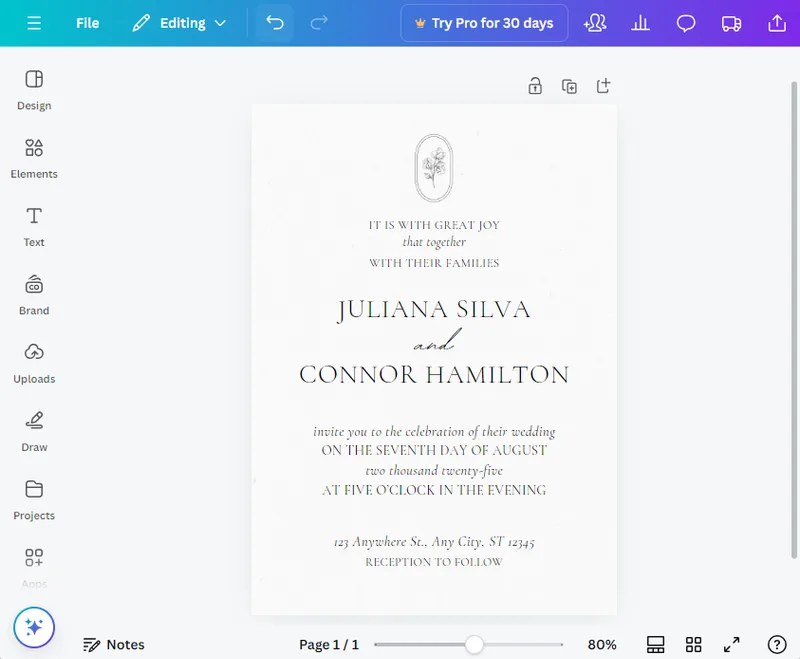
This design is pretty much ready to roll! If you wanted, you could customize the text and send this to print just how it is. We print for stationery designers, too, so we understand how this can be viewed as competing with their offerings, and we considered that before publishing this article. However, the trend toward DIY invitations using Canva is ongoing, and we’re too small to have any real effect on that. We feel that making more invitation options available for more people is better for the stationery industry as a whole. Furthermore, Canva is advanced enough that you can use it to start a stationery design service before investing in expensive tools such as Adobe Illustrator.
Step 2. Set up for printing.
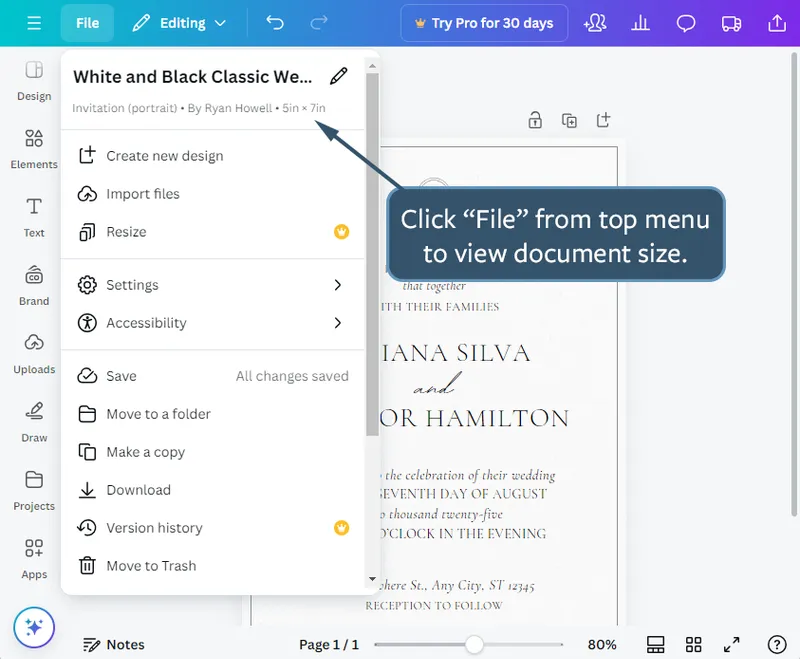
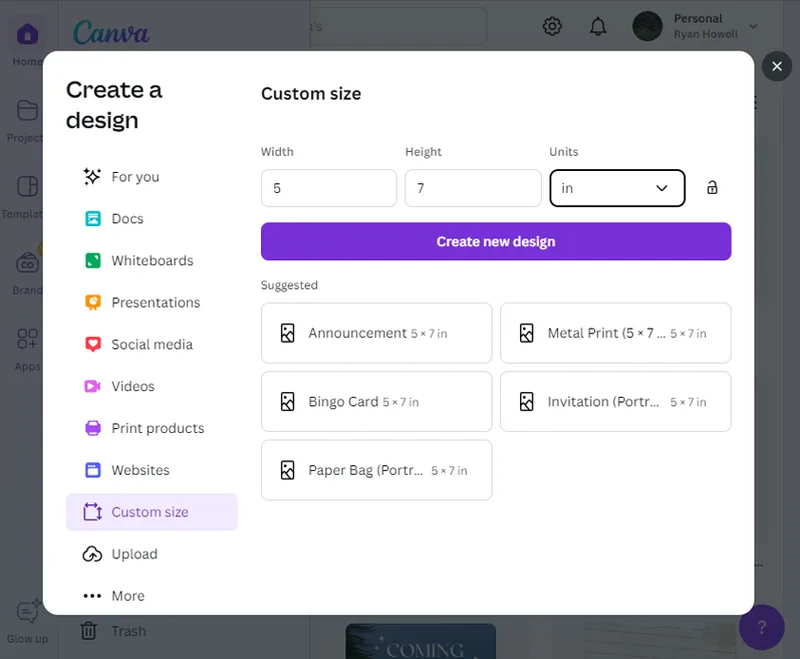
When it comes to printing, the dimension is very important to consider. For this demonstration, let’s make sure our artwork is 5 x 7 inches. That’s the size that will fit into an A7 envelope. We always work backward from the envelope size. Another popular size is the A9 envelope, which holds a 5.5 x 8.5 inch card.
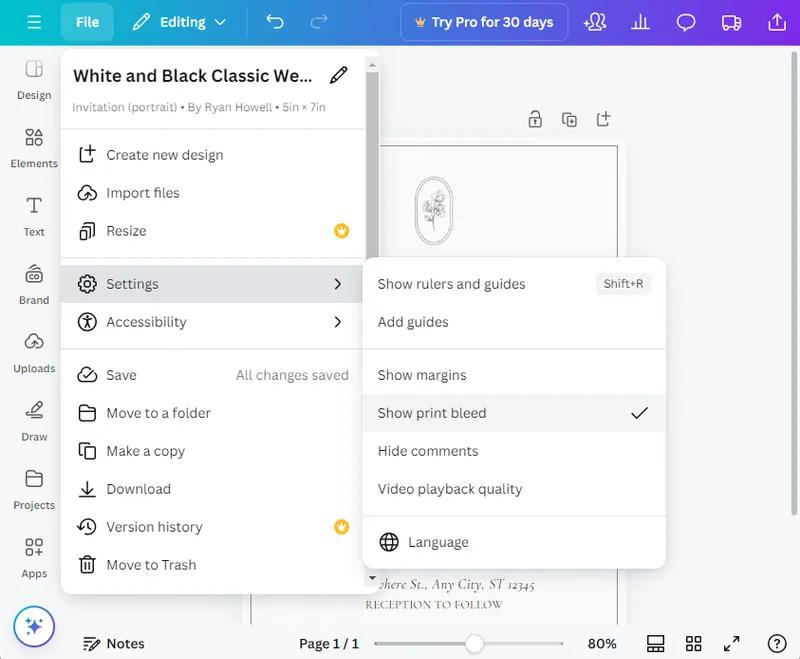
From the top of the screen, select “File.” The flyout menu shows the dimension of the document.
If you’re creating a new design, select “Create a Design” from the home menu, and choose Custom Size.
Now it’s time to get into some authentic printer lingo. If your design runs off of the paper, we print your design a little bit larger than the trim size to make sure there are no gaps in the artwork. This is called “Bleed.”
Even the free version of Canva supports a bleed zone. To turn it on, select File > Settings > Show Print Bleed. This turns on a black box around your design, which indicates the trim line. This box is a guide, and it will not be printed with the design. It is indicating that the area outside the box will be trimmed off.
As you can see, the template we are using does not require bleed, so you can ignore this if your design does not run off the edges of the paper. The bleed zone is turned off by default.
Step 3. Download your design file.
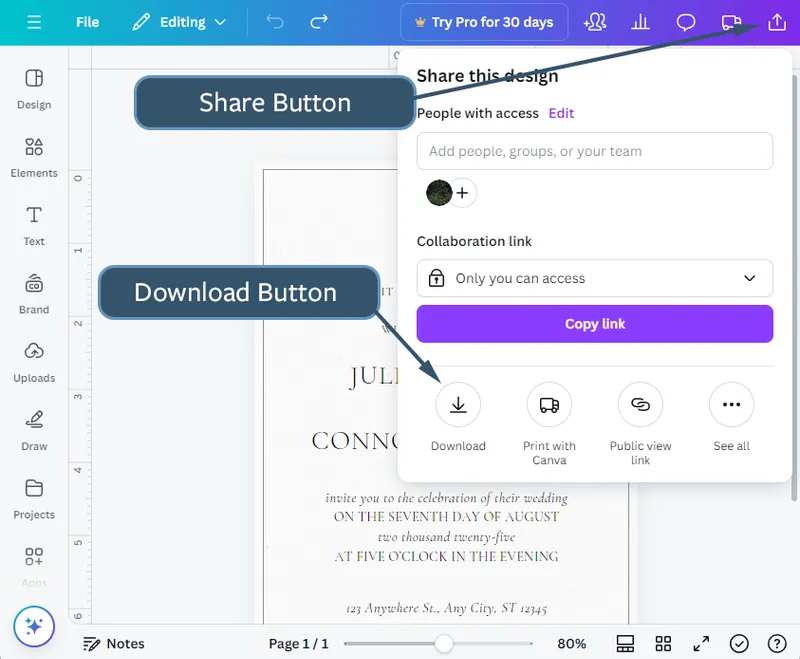
Once your design is perfect from top to bottom, it’s time to download a letterpress-printable file from Canva. From the top of the screen, select the “Share” button and choose “Download.”
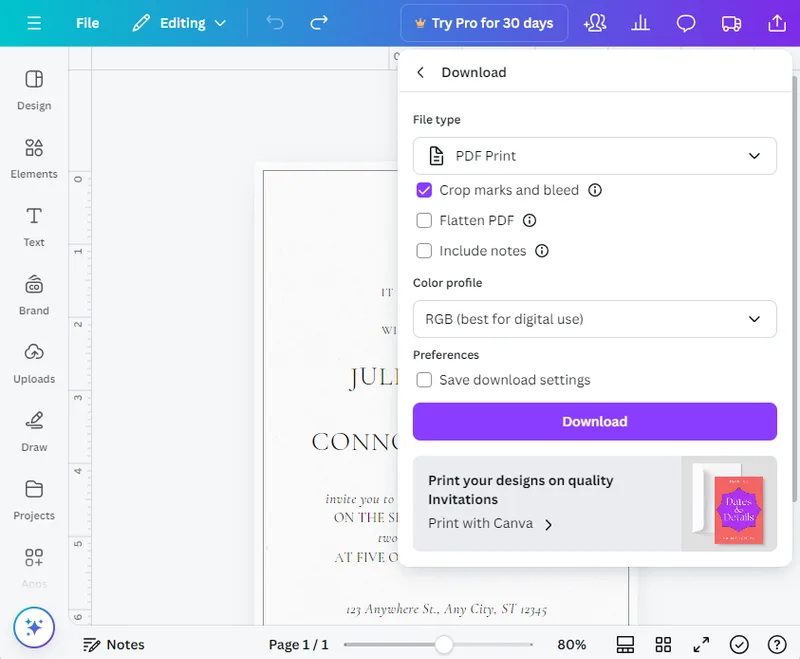
When you click the Download button, it changes the flyout menu to show the Download settings. Select “PDF Print” as the File Type, and click the check box for “Crop Marks and Bleed.” Do not select the check box for “Flatten PDF.”
Below these check boxes, the Color Profile dropdown menu shows RGB mode. Ideally, CMYK artwork is better for our process, but it is only available with the paid version of Canva. It’s easy for us to change this in pre-press, so please let us know the artwork is in RGB mode and will convert it for you.
Click the Download button to download a PDF of your design.
These download settings output your artwork as vector art. That allows us to open your design in Adobe Illustrator for any pre-press adjustments needed for letterpress platemaking. Vector art is very important for our process, because letterpress plates must be made with very high resolution.
The template we tested included a vector illustration from a free collection of botanical line drawings on Canva. If your artwork is not in vector format, we may have to adjust it for you. I was not able to find a good way to determine whether artwork is vector in the program, but I will update this if I discover a method.
Generally, if you can zoom in on the text or artwork and it does not become pixelated, it is probably vector format. Here’s how the downloaded Canva PDF file looks in Adobe Illustrator, with the vector illustration highlighted:
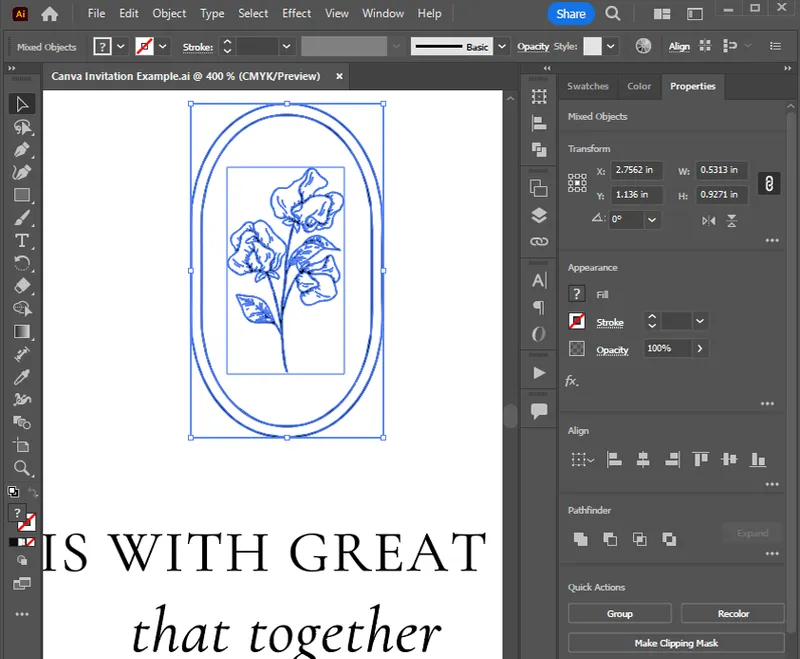
From here, we use specialized equipment to turn your design into a raised letterpress plate. The plate is then mounted on our vintage letterpress printing presses. Then, we carefully adjust the press to print your design as crisply and cleanly as possible, with a deep letterpress impression.
Final Thoughts
Canva offers many useful tools for print design, including bleed, crop marks and vector output in PDF format. It’s light on vector drawing tools, but it does allow you to position and resize vector artwork if you have an illustration from the template library or other sources. With any print design, we recommend doing a print proofing phase before sending to us for printing. Print it out on your home printer with crop marks, trim it out with an x-acto, and make sure everything looks how you want in print. Words that look large on screen may look very small in physical form. This is also a great opportunity to share the proof to check for any spelling errors.
When you send us a design to print, that’s just the first step. We review each design for printability, and we will flag any potential issues and recommend adjustments in a PDF proofing stage before making your custom letterpress plates. If you have any questions or need help with file setup, please contact us and we will be glad to help. Happy designing!